Azure Cloud Shell, The Remote Dev Box You Already Have
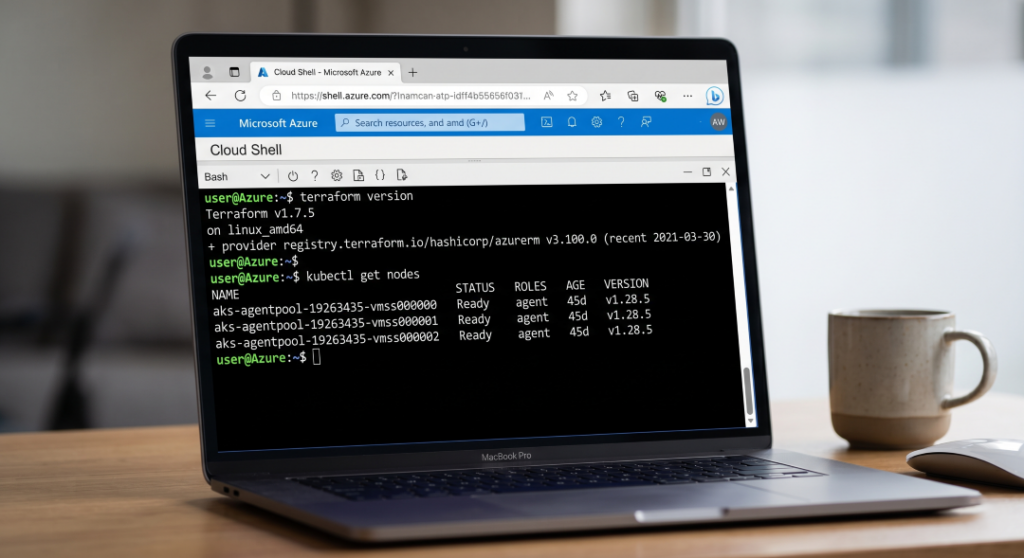
Azure Cloud Shell is one of those tools that looks small until you actually use it. Then it starts acting like a spare laptop living inside your browser.
For DevOps work, that matters. For locked-down Windows laptops, it matters even more.
What it is
Cloud Shell gives you a browser-based Bash or PowerShell session tied to your Azure identity. You open it in the Azure portal or at shell.azure.com, sign in, and you are in a managed environment with Azure tooling already waiting.
That means no local installs for the usual suspects. No fight with corporate admin rights. No begging IT for Terraform, kubectl, Azure CLI, or Az PowerShell when all you really need is to ship work.
It is built for interactive Azure administration, scripting, and day-to-day ops. It is not a general compute box and it is not where you want to run long jobs and walk away for the afternoon.
Why it matters on a locked-down laptop
If your Windows laptop is tightly controlled, Cloud Shell gives you a way around the boring parts of that reality. You only need a supported browser and a network path to Azure. That is it.
You do your work in the cloud, but it still feels like a terminal. That is the trick.
I have seen this pattern save time in real life for people who can browse the web but cannot install half the tools they need. Cloud Shell turns that limitation into a workable setup instead of a blocker.
What comes ready to use
Cloud Shell ships with a decent stack out of the box. Azure CLI is there. Azure PowerShell is there. Git is there. kubectl, Helm, Terraform, Bicep, Ansible, Packer, and a pile of other useful tools are there too.
That makes it useful for almost every routine Azure task:
- Check resources.
- Run scripts.
- Edit IaC.
- Manage AKS.
- Trigger or inspect DevOps workflows.
You are not spending your first 30 minutes installing tooling. You are already inside the environment and working.
How persistence works
Cloud Shell gives you a persistent home directory backed by Azure Files. The mounted share appears as clouddrive, and that is where your scripts, repos, config files, and shell customizations should live.
Anything under home survives between sessions. Anything outside that world is temporary.
That detail matters more than people think. If you treat Cloud Shell like a throwaway terminal, you will keep losing useful setup work. If you treat it like your remote dev box, it starts feeling solid.
The built-in editor
Cloud Shell includes a Monaco-based browser editor. It is not full desktop VS Code, but it is good enough to edit YAML, Terraform, Bicep, shell scripts, and small config files without leaving the browser.
That helps a lot when you are on a corporate machine that blocks installs or extension sprawl. You open code ., make your change, save it to clouddrive, and keep moving.
For quick fixes, it is more useful than people expect. For deep work, it is still better than editing in a tiny web text box and pretending that counts as development.
The ways DevOps engineers use it well
The strongest use case is Azure-centric ops. Provision a resource group. Run a Bicep deployment. Test a Terraform change. Inspect AKS. Pull logs. Trigger an Azure DevOps pipeline. Do the thing, verify it, move on.
Cloud Shell is also good for incident response. When something breaks at 7:40 PM and your laptop is locked down tighter than a bank vault, the browser still works. That alone makes it worth knowing well.
Here is the pattern I like best:
- Keep IaC in Git.
- Clone it into
~/clouddrive. - Edit it in Cloud Shell or through VS Code connected to Cloud Shell.
- Run the command.
- Commit the result.
That workflow is simple, repeatable, and hard to mess up.
Terraform, Bicep, and Azure CLI
This is where Cloud Shell earns its keep. Terraform and Bicep are already there, and Azure CLI is already logged in. For a lot of Azure work, that removes the annoying setup tax that usually slows everything down.
A typical Terraform session looks normal enough:
bashcd ~/clouddrive/infrastructure/terraform/environments/dev
terraform init
terraform plan
terraform apply
You can do the same with Bicep and az deployment. The important part is that the environment is stable enough for short, focused work, even if it is not the place for giant build jobs.
AKS and Kubernetes work
kubectl and Helm are available, which makes Cloud Shell handy for AKS admin. You can fetch credentials, inspect workloads, patch deployments, and check cluster state without installing Kubernetes tooling locally.
That is a big deal in locked-down environments because Kubernetes tooling is often the first thing that gets blocked by policy or forgotten during laptop rebuilds.
Cloud Shell gives you a clean way to reach the cluster from the browser, provided your network and AKS access rules allow it.
Azure DevOps from the shell
You can add the Azure DevOps CLI extension and use it from Cloud Shell too. That opens the door to pipeline management, repo operations, and other Azure DevOps tasks from the command line.
There is one wrinkle. Some Azure DevOps CLI tasks still need PAT-based authentication or explicit login steps, even when your Azure session is already live. That is normal enough to plan for, not a reason to avoid the tool.
If you work around Azure DevOps a lot, this setup is useful. It keeps the work in one place instead of bouncing between browser tabs, local tools, and whatever half-working installer your laptop policy allows.
VS Code connection
If your laptop permits VS Code but blocks local CLIs, Cloud Shell can plug into VS Code with the Azure Account extension. That gives you the editor you want and the remote shell you need.
This is probably the nicest setup for a lot of engineers. VS Code stays your front end. Cloud Shell becomes your runtime.
And if VS Code is not allowed, you still have the browser editor. So the fallback path is decent, not desperate.
Limits worth knowing
Cloud Shell has a few hard edges. Sessions time out after about 20 minutes of inactivity. It is not built for long-running jobs. It is not a replacement for CI runners. And it is not the place to pin your production build chain if version drift will ruin your day.
That sounds restrictive until you look at what it is actually for. It is a control plane, not a workstation replacement in the old desktop sense.
Use it for interactive work, short scripts, emergency access, and quick edits. Push heavy builds, scheduled jobs, and reproducible pipeline runs elsewhere.
What I would do on a corporate Windows laptop
I would bookmark shell.azure.com, keep my repos in Git, and store everything important in ~/clouddrive. I would use Cloud Shell for Azure CLI, Terraform, Bicep, AKS, and Azure DevOps tasks. I would connect VS Code only if the machine policy allows it.
I would also keep a few shell aliases and helper scripts in my home directory. Small convenience, big payoff.
That setup gives you a real working environment without asking your laptop for permissions it will never grant. It is a clean compromise, and for Azure-heavy DevOps work, it works better than it has any right to.